AI Voice Agents on the Edge: Build an Always-On Assistant with Pipecat on WendyOS
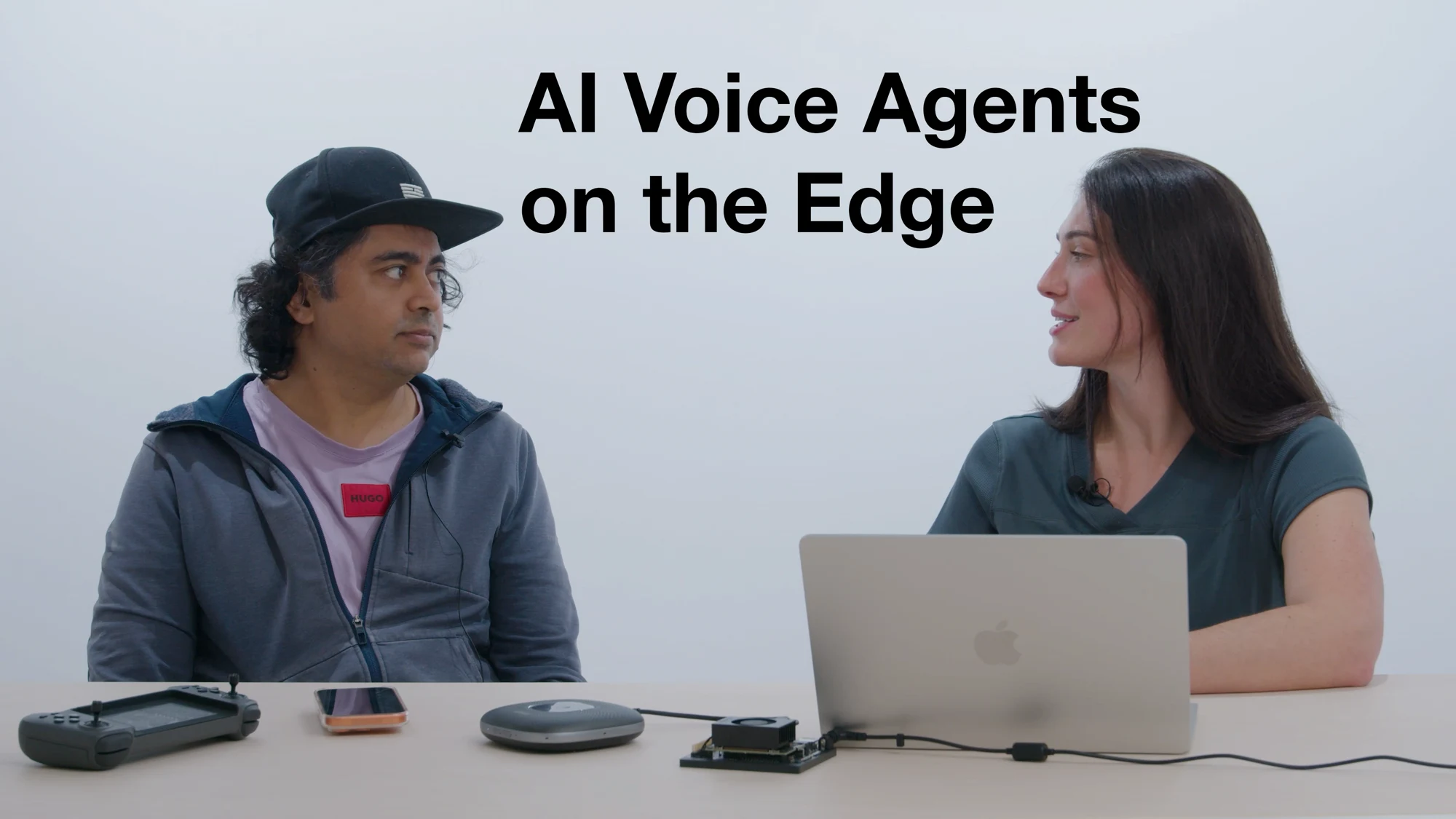
Join our Discord community to connect with other developers building with WendyOS!
Voice is the most natural interface we have, and it is also one of the hardest to ship. You need a microphone path, speech-to-text, a language model, text-to-speech, a way to know when the user is actually talking to you, and a way to push audio back out, all stitched together with low enough latency that a conversation feels like a conversation. The voice-ai-pipecat template gives you all of that in one wendy init, running on a Jetson, a Raspberry Pi, or any Ubuntu box.
TL;DR, skip the tutorial
If you just want to run it, one command scaffolds the full project:
wendy init \
  --app-id voice-assistant-demo \
  --target wendyos \
  --language python \
  --template voice-ai-pipecat \
  --no-extra-entitlements \
  --assistant skip \
  --var GOOGLE_API_KEY=your_gemini_key
Then:
cd voice-assistant-demo
wendy run
That is it. The CLI cross-builds the Docker image, ships it to your device over USB-C, brings the container up with audio and host networking, waits for the readiness probe, and opens your browser to the live visualizer. Say "hey jarvis" and start talking.
Grab a Gemini key from Google AI Studio first. Full CLI reference: wendy.sh/docs.
The rest of this post walks through everything the template generated, useful if you want to understand the architecture, swap the model, change the wake word, or fork it into your own product.
What you'll build
An always-on voice assistant. The data path looks like this:
browser mic --WS--> FastAPI --> faster-whisper (STT) --> Gemini 2.5 Flash --> Piper (TTS) --WS--> browser
                                                          + Google Search grounding
The browser captures your microphone and streams raw audio over a WebSocket to a FastAPI server running on the device. On the device, Pipecat orchestrates the pipeline: an openWakeWord gate listens for "hey jarvis", faster-whisper turns your speech into text, Gemini 2.5 Flash reasons about it (optionally grounded with Google Search), and Piper synthesizes the reply. The audio comes back over the same WebSocket and a React visualizer paints two reactive waveforms, blue for your voice and emerald for the bot's.
The whole thing is built on Pipecat, an open-source framework for real-time voice and multimodal agents. The template wires Pipecat's processors into a pipeline and wraps it in a FastAPI app, a settings drawer, and a visualizer.
Prerequisites
- A WendyOS or Linux device. This template runs on:
- NVIDIA Jetson, Orin Nano, AGX Orin, and the upcoming Jetson Thor
- Raspberry Pi 5, with WendyOS or vanilla Ubuntu
- Any Ubuntu host, x86_64 or aarch64, if you would rather not flash a device
- A USB audio device. The template was designed around the Anker PowerConf speakerphone, but any USB mic and speaker combination works. You set the ALSA card name at deploy time.
- A Google AI Studio API key for Gemini. You can switch to OpenAI, Anthropic, or Groq later from the settings drawer.
- The
wendyCLI:brew install wendylabsinc/tap/wendy
Step 1: scaffold the project
wendy init \
  --app-id voice-assistant-demo \
  --target wendyos \
  --language python \
  --template voice-ai-pipecat \
  --no-extra-entitlements \
  --assistant skip \
  --var GOOGLE_API_KEY=your_gemini_key
This pulls the voice-ai-pipecat template from the Wendy templates repo and writes it to ./voice-assistant-demo/. The --assistant skip flag tells the CLI not to launch Claude Code or Codex afterwards, because here we want to read the code rather than vibe-code on top of it.
Here is what the template gives you:
voice-assistant-demo/
├── wendy.json          # entitlements, readiness, lifecycle hooks
├── Dockerfile          # multi-stage: frontend build + Pipecat runtime
├── entrypoint.sh       # ALSA, TLS, model seeding, then hand off to Python
├── main.py             # FastAPI app, session manager, WebSocket endpoint
├── pipeline.py         # the Pipecat pipeline and all the frame processors
├── requirements.txt    # pipecat-ai, faster-whisper, piper, openwakeword, ...
└── frontend/           # React + Vite visualizer
    └── src/
        ├── App.tsx
        ├── audio/      # mic capture, WebSocket transport, analyser hooks
        └── components/ # visualizer, settings drawer, mic selector
Step 2: read wendy.json, the only WendyOS-specific file
{
    "appId": "voice-assistant-demo",
    "version": "0.1.0",
    "entitlements": [
        { "type": "network", "mode": "host" },
        { "type": "audio" },
        { "type": "persist", "name": "voice-assistant-demo-models", "path": "/models" }
    ],
    "readiness": {
        "tcpSocket": { "port": 3005 },
        "timeoutSeconds": 300
    },
    "hooks": {
        "postStart": {
            "cli": "wendy utils open-browser https://${WENDY_HOSTNAME}:3005"
        }
    }
}
Four things to notice:
networkhost mode, so port 3005 binds directly on the device's network stack. Any browser on the LAN can reach the visualizer, and the container can make outbound calls to the cloud LLM and STT APIs.audioentitlement, which gives the container ALSA access to the USB mic and speaker. WendyOS apps are sandboxed by default, so you opt in to hardware.persistvolume at/models, which caches the Piper voice, the Whisper weights, the openWakeWord models, the TLS cert, and saved settings across restarts. First boot seeds it from the image, every boot after that is instant.postStarthook, which opens your browser to the device once the readiness probe on port 3005 succeeds. Notice thehttps, which matters and is explained below. The readiness timeout is a generous 300 seconds because first boot has to seed the models.
Step 3: read entrypoint.sh, the boot sequence
The Dockerfile hands off to entrypoint.sh, which does the device-specific setup the Python app assumes is already in place. It is worth reading because every line solves a real problem that bit someone before you.
ALSA routing. The script writes /etc/asound.conf from an ALSA_CARD variable that defaults to PowerConf. It uses an asym layout that splits playback and capture, each through its own plug for in-kernel rate conversion. The comments explain why this is not dmix/dsnoop, which hit a channel-count error after the pipeline restarts on a settings change. If your device shows a different card in arecord -l, you override ALSA_CARD at deploy time, or set it to skip to leave routing to the UI device picker.
/etc/hosts seeding. The Jetson base image ships an empty /etc/hosts, which makes Python's httpx fail to resolve localhost. The script pins loopback resolution so the cloud LLM client's loopback paths work. This cannot live in the Dockerfile because BuildKit mounts /etc/hosts read-only at build time.
Model seeding. The Dockerfile stages the seed assets at /opt/seed-models so the persist mount at /models cannot hide them on first run. The entrypoint copies them into /models with cp -n, so re-runs are cheap and a custom voice you dropped in by hand survives.
TLS. This is the subtle one. Browsers gate navigator.mediaDevices.getUserMedia, the microphone capture API, behind a secure origin. Plain HTTP on the device's mDNS hostname counts as insecure, and the React app would crash trying to read the mic. So on first boot the entrypoint generates a self-signed cert in /models/tls, stuffs it with the right hostnames as subject alternative names, and uvicorn serves HTTPS on 3005. The cert lives on the persist volume so the browser only asks you to accept the self-signed exception once per machine.
Step 4: read pipeline.py, the Pipecat pipeline
This is the heart of the app. build_pipeline_task assembles an ordered list of frame processors and hands them to a Pipecat Pipeline. A frame processor is a small unit that receives audio or text frames, does one thing, and passes frames downstream. The order is the data flow:
processors = [
    transport.input(),          # raw audio frames in from the WebSocket
    StartupAudioGate(...),      # drop the first second or two of garbage audio
    MuteGate(is_muted=...),     # if the user muted, stop here
    WakeWordGate(...),          # stay silent until "hey jarvis" fires
    GreetingAnnouncer(...),     # optional spoken greeting on connect
    stt,                        # faster-whisper: audio -> text
    TurnTelemetry(),            # per-turn latency and char-count timing
    user_capture,               # capture the finalized user transcript
    context_aggregator.user(),  # add the user turn to the LLM context
    llm,                        # Gemini 2.5 Flash: text -> streamed reply
    BotResponseLogger(...),     # assemble the reply, fire turn-complete
    tts,                        # Piper: text -> speech audio
    transport.output(),         # audio frames back out to the browser
    context_aggregator.assistant(),  # add the bot turn to the context
]
A few of these processors are worth calling out.
The wake-word gate. WakeWordGate runs openWakeWord on the incoming audio and blocks every frame until it hears one of the configured phrases. The default is hey_jarvis, and the pretrained set also includes alexa, hey_mycroft, hey_rhasspy, and ok_nabu. Once it fires, it opens the mic for a listening window of a few seconds, then closes again. This is what makes the assistant "always on" without sending every ambient sound to the cloud. Note that the MuteGate sits before it, so a muted mic does not even run wake-word inference, which saves the compute and stops false fires.
The STT and TTS services. Speech-to-text is faster-whisper running the tiny model with int8 compute, which lands around 300 to 500 ms per turn on a CPU and is plenty for a voice loop. Text-to-speech is Piper with the en_US-lessac-medium voice. Both are local, so the only thing leaving the device is the text you send to the LLM. You swap either one by changing a line, the model picker is also in the settings drawer.
The LLM and grounding. The default provider is Google with Gemini 2.5 Flash, and when search is enabled it uses Gemini's native google_search grounding so the model can answer questions about current events. For the other providers (OpenAI, Anthropic, Groq) the template registers a web_search function backed by Brave Search and lets the model decide when to call it. There is a nice detail here: Gemini's API treats native search and function declarations as mutually exclusive, so when search is off for Google the pipeline falls back to built-in time, date, and math function tools instead.
The interruption setting. By default allow_interruptions is false. Near-field mic and speaker setups like the PowerConf pick up the bot's own speech past the hardware echo cancellation and would cut themselves off mid-sentence. If you are on headphones or in a clean room, flip it on from the settings drawer.
The template also disables Pipecat's idle-timeout watchdog. The default behavior cancels a pipeline after a few minutes of silence, which is exactly wrong for an assistant whose entire job is to sit quietly and wait for you.
Step 5: read main.py, the FastAPI app
If pipeline.py is the pipeline, main.py is everything around it: the web server, the settings store, the session lifecycle, and the audio device plumbing.
The session manager. SessionManager owns the lifecycle of a single pipeline. When a browser connects on the WebSocket, it builds a fresh pipeline task from the current settings and runs it. When you save a setting in the UI, it tears the pipeline down and rebuilds it, which is why a model or voice change applies on the next utterance rather than needing a redeploy.
The settings API. GET and POST /api/settings back the settings drawer. You can change the LLM provider and model, the Piper voice, the STT language, the wake word and its sensitivity threshold, whether Google Search grounding is on, whether interruptions are allowed, the system prompt, and the greeting. Everything is persisted to the /models volume so it survives a restart.
The WebSocket endpoint. /bot-audio is the audio transport. It checks the request origin and an auth token, then connects the browser's audio stream to the Pipecat transport. Audio frames flow both ways over this one socket.
Audio device handling. On startup main.py enumerates the PyAudio devices and logs them, so after your first deploy you can read the log, find the index for your USB mic, and set AUDIO_INPUT_DEVICE precisely. There is also a hotplug watchdog and a known limitation: ALSA binds the device at container start, so unplugging the mic mid-conversation currently needs a wendy run restart to recover. A usb-hotplug entitlement is on the roadmap.
Conversation history. Each completed turn is written to the persist volume, so the assistant remembers the conversation across restarts. The system prompt and any saved history seed the LLM context when a new pipeline is built.
Step 6: read the frontend
The visualizer is a React and Vite app. usePipecatClient drives a Pipecat WebSocket session: it captures the mic through the Pipecat client, receives the bot's TTS audio, and exposes Web Audio AnalyserNodes for both streams. App.tsx turns the analyser data into the two waveforms and a status pill that moves through listening, thinking, and speaking as the pipeline reports state.
Because the WebSocket transport does not always expose the bot's audio as a media track, the client also tracks a botSpeaking flag pushed from the server, and uses it to animate the emerald waveform even when there is no analyser node for the bot. The settings drawer and the microphone selector are plain React components that hit the /api/* endpoints described above.
One practical note from the frontend: the first time you open the page you will see a "Not secure" warning because the cert is self-signed. Click through once (in Chrome, Advanced then Proceed) and the browser remembers the exception. For zero warnings and reliable Safari support, generate a trusted cert with mkcert and push it to /models/tls, as the README explains.
Step 7: read the Dockerfile
# Stage 1 - Build the React visualizer
FROM node:22-slim AS frontend
WORKDIR /frontend
COPY frontend/package*.json ./
RUN npm ci
COPY frontend/ ./
RUN npm run build

# Stage 2 - Pipecat runtime, lightweight cloud-LLM build
FROM debian:bookworm-slim
...
RUN pip install --no-cache-dir -r requirements.txt
This build is the lightweight, portable variant. It runs on debian:bookworm-slim, around a tenth the size of the previous Jetson TensorRT base, which means it runs on a Pi 5, an x86_64 box, or a generic ARM64 host without change. The trade-off is that Whisper runs on CPU int8 rather than CUDA float16. For a voice loop that is a fine trade.
The interesting part is what gets pre-downloaded at build time so the device is not waiting on the network on first boot:
- NLTK punkt_tab, which Piper uses for sentence tokenization and would otherwise try to fetch on first import.
- The default Piper voice, around 63 MB, so the settings drawer renders immediately. Other voices fetch on first selection to save image bloat.
- The faster-whisper tiny model, around 75 MB, downloaded with the same int8 compute type used at runtime so the build warms the right kernels.
- The openWakeWord models, a few MB each, the full pretrained set.
All of these land in /opt/seed-models so the persist mount at /models cannot shadow them, and the entrypoint copies them across on first boot.
Step 8: deploy
cd voice-assistant-demo
wendy run
The CLI:
- Discovers your default WendyOS device, or you pick one with
--device - Builds the multi-stage Docker image, cross-compiling for the device's architecture
- Pushes it to the device's local registry
- Brings the container up with the audio, network, and persist entitlements
- Waits for the readiness probe on port 3005
- Runs the
postStarthook, opening your browser tohttps://<device>.local:3005 - Streams container logs back to your terminal
Accept the certificate warning once, grant the mic permission, say "hey jarvis", and have a conversation. Watch the blue waveform light up as you talk and the emerald one as the bot replies.
Where to go from here
A few ideas if you want to fork this into something:
- Change the wake word. Pick a different pretrained phrase from the settings drawer, or train a custom one with the openWakeWord recipe if you want it to answer to your own brand.
- Swap the model. Move Whisper up to
baseorsmallfor better accuracy, pick a different Piper voice, or switch the LLM to a local provider for a fully offline build. - Add function tools. The template already registers time, date, and math tools, and a web search tool for non-Google providers. Register your own to let the assistant control hardware, query a database, or call your API.
- Give it a body. This is an edge device with GPU, audio, and the full entitlement surface. Wire the assistant's function calls to motors, lights, or sensors and you have a voice-controlled robot.
The whole template is the kind of thing that is genuinely annoying to assemble from scratch: getting ALSA routing right, pinning the cuDNN-compatible Whisper build, solving the getUserMedia TLS problem, gating on a wake word without shipping every sound to the cloud, and keeping latency low enough to feel conversational. wendy init --template voice-ai-pipecat gives you a working starting point.
Full CLI docs at wendy.sh/docs.
Related post
Expand your knowledge with these hand-picked posts.
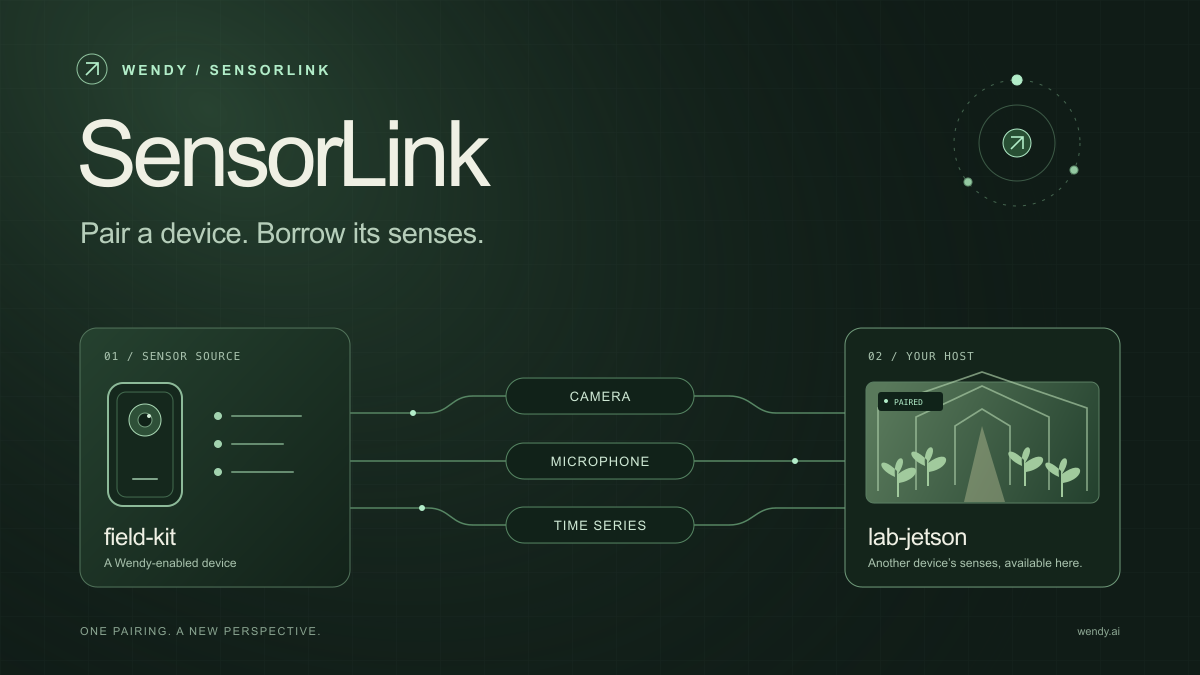
SensorLink: Pair a Device. Borrow Its Senses.
Give your Wendy host the eyes and ears of another device. SensorLink brings cameras, microphones, and a shared model for time-series sensors into a familiar pairing workflow.
Wendy Labs - Wendy Labs Team
Free NVIDIA DGX Spark 3D model
Download our free NVIDIA DGX Spark 3D model as a GLB or an editable Blender scene with studio lighting, materials, and cameras. No signup required.
Wendy Labs - Wendy Labs Team
Start with one device. Close the loop around it.
Use WendyOS on your hardware or add Wendy Agent to an existing Linux or Apple Silicon Mac. Connect sensors, run your code, and carry what you learn into the next release.