Introducing Wendy Net: Zero Trust Networking on WendyOS
Wendy Labs · Wendy Labs Team · November 11, 2026
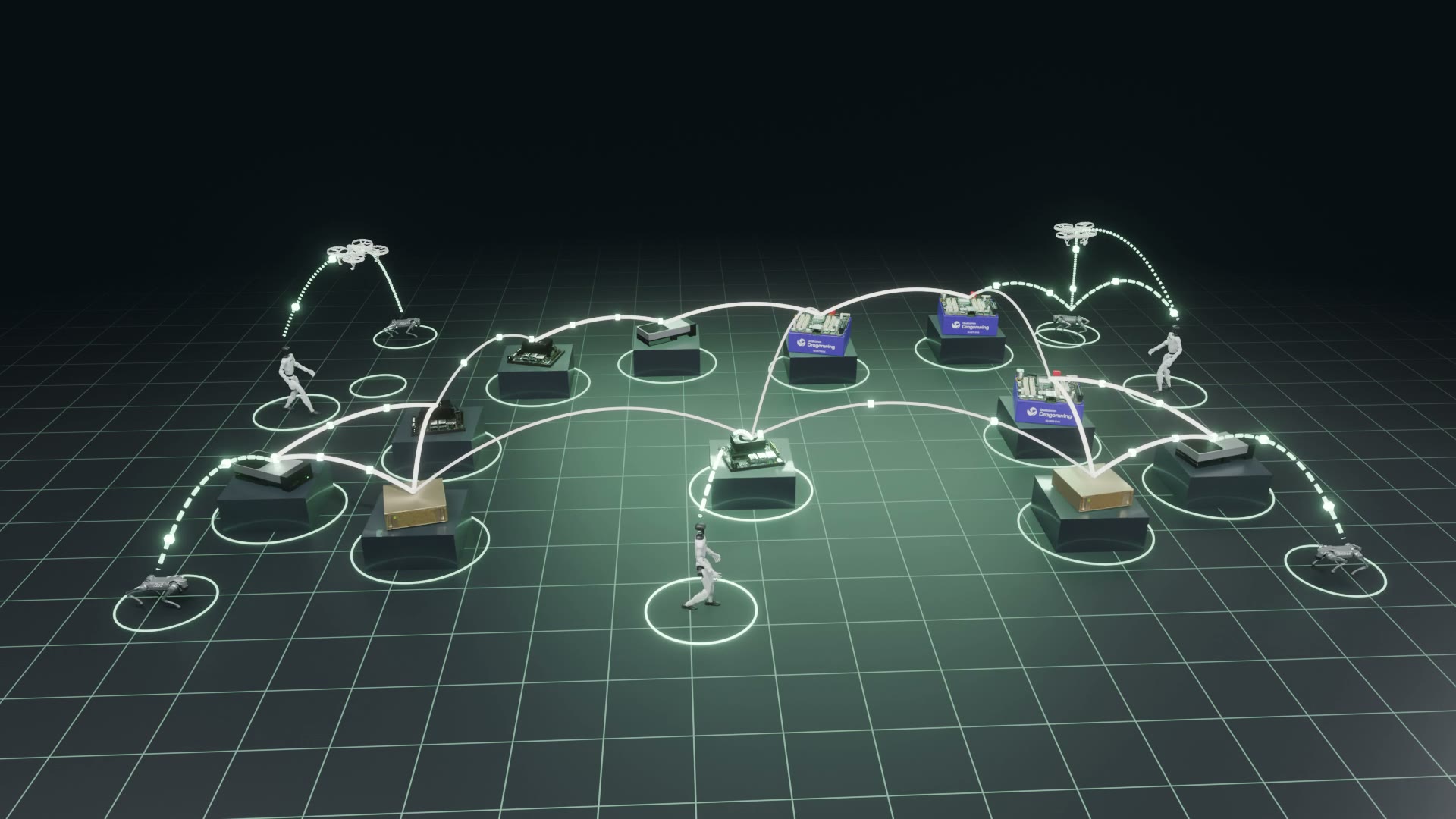
Robots, cameras and gateways rarely share one tidy network. One is plugged into Ethernet, one is on the shop Wi-Fi, one only has Bluetooth, and one sits at a different site. Wendy Net puts all of them on one private network so the software on each device can reach the others.
Wendy Net is built into WendyOS and comes with every image. Devices communicate with each other securely, directly or through intermediate devices, over Ethernet, Wi-Fi, Wi-Fi Aware, Bluetooth Low Energy and Wendy Cloud. Every connection is verified on both ends, and your apps only ever see ordinary addresses and ordinary mDNS services.
Built into WendyOS
There is nothing to install. Wendy Net ships in WendyOS, and one command turns it on for a device. Enroll your devices in the same Wendy Cloud organization, sign in, then run this for each device:
Add --nan=true on devices with a Wi-Fi Aware radio, which we cover below. Only the options you pass change, so you can turn links on and off one at a time.
Then check what the device sees:
wendy net status --device wendyos-rover.localwendy net topology --device wendyos-rover.local
status shows the saved settings and what is running right now. topology shows the neighbors and routes this device can see.
Because Wendy Net is part of the operating system, the certificates, routing, radio drivers and service discovery are already in place when the device boots. You can also install wendy-agent on another Linux distribution such as Ubuntu and enroll the device, and it joins the same network, as long as its kernel and radios support it. On WendyOS all of that comes preinstalled.
Zero trust from the first packet
Wendy Net doesn't trust a device because it is on the same Wi-Fi network, in Bluetooth range or behind the same firewall. Every connection has to prove who is on the other end.
Every device has an identity. Each device holds a certificate from your organization. The certificate gives it one private address, and that address stays the same on every link.
Both ends prove who they are. Advertisements over mDNS, Wi-Fi Aware and Bluetooth only tell a device who might be nearby. Before a link comes up, both devices authenticate with mutual TLS, and both have to belong to your organization.
Routes are signed. Each device signs a manifest with its address, name and services, and its neighbors pass it along. Neighbors can relay a manifest but can't forge one, so a route to a device only counts when that device signed it.
Traffic is encrypted end to end. When an app connects to another device, the connection is checked against the destination's own certificate and encrypted the whole way. Devices in between forward traffic they can't read.
Apps start with nothing. An app only joins Wendy Net when its wendy.json asks to, and other devices can only reach the ports it declares. Finding a service doesn't grant access to it.
How it works
Finding neighbors
Devices look for each other on every link they have. On Ethernet and Wi-Fi they use mDNS. With Wi-Fi Aware, the radios find each other directly, with no access point. Over Bluetooth, each device sends a small advertisement.
Those advertisements are only hints. A link comes up once the mutual TLS check passes. Devices that are further away arrive through the signed manifests your neighbors relay.
Choosing a path
Every type of link has a cost:
Link
Cost
Ethernet
64
Wi-Fi
128
Wi-Fi Aware
512
Bluetooth
4096
A route costs the sum of its links, and traffic takes the cheapest one. Three fast links (64 + 128 + 512 = 704) beat a single Bluetooth link (4096).
When two devices share Ethernet, Wi-Fi and Bluetooth, Wendy Net uses Ethernet. Unplug the cable and they reconnect over Wi-Fi. Lose Wi-Fi and they fall back to Bluetooth. The device keeps the same address the whole time, so your app doesn't change anything.
Every transport
Link
Use it for
Ethernet
Wired devices on the same local network
Wi-Fi
Devices that join the same access point
Wi-Fi Aware
Devices within Wi-Fi range of each other, with no access point at all
Bluetooth Low Energy
Short range, when nothing faster is available. Pairing is automatic, and apps need no Bluetooth entitlement
Wendy Cloud
Devices at different sites, joined over the internet
Your laptop can join too. wendy net connect connects your Mac or Linux computer over the local network or Bluetooth, so you can manage a device that is only reachable through other devices. Wendy Lite boards (ESP32-C5 and ESP32-C6, in beta) can join over Bluetooth or Wi-Fi.
HTTP, TCP and UDP over Bluetooth Low Energy
Yes, this works. Wendy Net carries IP traffic, so an app can make an HTTP request, open a TCP connection or send UDP datagrams to another device over a Bluetooth link, with the same code it would use on Ethernet. TCP and UDP traffic to the same device shares one encrypted connection. Bluetooth is much slower than Wi-Fi, so it is the link that keeps you connected when nothing else can, and your code stays the same either way.
Across any mix of links
Here is a harder case. Device A only reaches B over Bluetooth. B and C are at different sites and reach each other through Wendy Cloud. C reaches D over Wi-Fi Aware.
Wendy Net / A connects to D
One connection from A to D, encrypted end to end
ARobot
Bluetooth
BGateway, site 1
Wendy Cloud
CGateway, site 2
Wi-Fi Aware
DCamera
The app on A calls an ordinary address. B and C forward the traffic without being able to read it, and A checks that it is really talking to D.
A can still connect to D. The app on A makes one ordinary HTTP or TCP call to D's address, and Wendy Net carries it across all three links. Neither app does any routing. If a cheaper route appears, traffic moves to it. If D goes offline, its services disappear from discovery, and they come back when D does.
Everything shows up as an mDNS service
Apps on Wendy Net find each other with mDNS and DNS-SD, the same discovery that Bonjour and Avahi use. Your app advertises a service the way it would on any local network, and apps on other devices browse for it with any mDNS library.
Wendy Net doesn't flood multicast between devices. WendyOS watches your app's announcements on its private network, carries them to other devices inside the signed manifests, and answers mDNS for every app on Wendy Net. A service that is only reachable over Bluetooth, three links away, shows up in your app's browser like a service on the same switch.
The wendy.json entitlements
The app that publishes a service needs a network entitlement in Wendy Net mode, listing the ports other devices may reach:
"mode": "mesh" is the literal value that puts the app on Wendy Net.
serviceCIDR must be 10.99.0.0/16, the range Wendy Net uses for service addresses. Other apps connect to the address that discovery hands them from this range.
ports is the allow list. This app listens on 8080 inside its container, and other devices reach it on 18080. Use "protocol": "udp" for UDP services. Any port you don't declare stays closed.
"isolation": "isolated" gives the app its own private network, which is where its mDNS traffic lives.
An app that only connects out to other services can leave out ports:
If your app uses Avahi's D-Bus API or a dns_sd.h library, also add { "type": "avahi" } and WendyOS runs a private Avahi daemon for that app. Apps never need Bluetooth or Wi-Fi Aware entitlements for Wendy Net, because WendyOS runs those links for them.
Publish a service
This Python service answers HTTP on port 8080 and advertises itself with python-zeroconf. It is adapted from the MeshMDNS example.
Both apps need their own address on their private network, so they share one small helper:
network.py
import fcntlimport socketimport structdef eth0_address(): """The app's own IPv4 address on its private network.""" with socket.socket(socket.AF_INET, socket.SOCK_DGRAM) as sock: packed = struct.pack("256s", b"eth0") result = fcntl.ioctl(sock.fileno(), 0x8915, packed) # SIOCGIFADDR return socket.inet_ntoa(result[20:24])
publisher/app.py
import jsonimport signalimport socketimport threadingimport uuidfrom http.server import BaseHTTPRequestHandler, ThreadingHTTPServerfrom zeroconf import IPVersion, ServiceInfo, Zeroconffrom network import eth0_addressinstance = "Workshop API " + uuid.uuid4().hex[:8]class Handler(BaseHTTPRequestHandler): def do_GET(self): body = json.dumps({"instance": instance, "status": "ok"}).encode() self.send_response(200) self.send_header("Content-Type", "application/json") self.send_header("Content-Length", str(len(body))) self.end_headers() self.wfile.write(body)address = eth0_address()server = ThreadingHTTPServer(("0.0.0.0", 8080), Handler)threading.Thread(target=server.serve_forever, daemon=True).start()zc = Zeroconf(interfaces=[address], ip_version=IPVersion.V4Only)info = ServiceInfo( "_http._tcp.local.", f"{instance}._http._tcp.local.", addresses=[socket.inet_aton(address)], port=8080, # the container port; other devices see the published port properties={"demo": "wendy-net", "path": "/"}, server=f"workshop-{uuid.uuid4().hex[:8]}.local.",)zc.register_service(info, allow_name_change=True)print(f"Advertising {info.name} at {address}:8080", flush=True)stopped = threading.Event()for sig in (signal.SIGINT, signal.SIGTERM): signal.signal(sig, lambda *_: stopped.set())try: stopped.wait()finally: zc.unregister_service(info) zc.close() server.shutdown()
The app advertises its own private address and its container port, exactly as it would on a home network. WendyOS translates both: other devices see a Wendy Net address and port 18080.
Both apps use the same Dockerfile, with a copy of network.py next to each app.py:
The client browses for _http._tcp, resolves what it finds and makes a normal HTTP request.
client/app.py
import jsonimport queuefrom urllib.request import ProxyHandler, build_openerfrom zeroconf import IPVersion, ServiceBrowser, ServiceStateChange, Zeroconffrom network import eth0_addressfound = queue.Queue()def on_change(zeroconf, service_type, name, state_change): if state_change in (ServiceStateChange.Added, ServiceStateChange.Updated): found.put((service_type, name))zc = Zeroconf(interfaces=[eth0_address()], ip_version=IPVersion.V4Only)browser = ServiceBrowser(zc, "_http._tcp.local.", handlers=[on_change])http = build_opener(ProxyHandler({}))while True: service_type, name = found.get() info = zc.get_service_info(service_type, name, timeout=2000) if not info or info.properties.get(b"demo") != b"wendy-net": continue addresses = info.parsed_addresses(IPVersion.V4Only) if not addresses: continue url = f"http://{addresses[0]}:{info.port}/" with http.open(url, timeout=5) as response: print(f"{name} -> {url}") print(json.load(response)) breakbrowser.cancel()zc.close()
Deploy the publisher to D and the client to A. In the topology above, the request crosses Bluetooth, Wendy Cloud and Wi-Fi Aware, and neither file mentions any of them.
cd publisherwendy run --device wendyos-device-d.local --detachcd ../clientwendy run --device wendyos-device-a.local
Workshop API 3f9c2a1b._http._tcp.local. -> http://10.99.0.7:18080/{'instance': 'Workshop API 3f9c2a1b', 'status': 'ok'}
The client gets a Wendy Net address and the published port. Always connect to what discovery returns, and don't hard-code addresses. Display names can gain a suffix when two devices publish the same name, so match on the service type and TXT data rather than the full name.
Python is only an example. Apps in Rust, C, Go or Node use their usual mDNS libraries in the same way. With the avahi entitlement and avahi-utils in the image, the command-line tools work too:
avahi-publish-service "My API" _http._tcp 8080 "path=/"avahi-browse --resolve _http._tcp
See services from your laptop
Your computer can join Wendy Net with your organization sign-in and browse the same services:
wendy net connectwendy discover --type meshwendy net services --type _http._tcp
Run wendy net disconnect when you are done.
Add Wi-Fi Aware with an Intel BE200 or BE202
Wi-Fi Aware lets two devices connect over Wi-Fi directly, with no router or access point between them. It is much faster than Bluetooth, which makes it a good link for robots and vehicles that work away from your network.
To add it, we recommend fitting an Intel BE200 or BE202 Wi-Fi 7 card in the device's M.2 slot. WendyOS publishes a driver add-on for these cards, intel-be202, for:
NVIDIA Jetson AGX Thor, AGX Orin and Orin Nano developer kits
Qualcomm Dragonwing IQ8 and IQ9
Raspberry Pi 5, through a PCIe to M.2 E key adapter such as Waveshare's PCIe to M.2 E key HAT+
The card's Bluetooth runs over a USB 2.0 connection from the M.2 socket. A PCIe-only adapter gives you the card's Wi-Fi without its Bluetooth.
With the card fitted and a wired or USB-C connection to the device, install the driver:
wendy device drivers list --availablewendy device drivers install intel-be202wendy device wifi list
Then turn on Wi-Fi Aware for Wendy Net and check for neighbors. Do this on every device that should use Wi-Fi Aware:
wendy net configure --participate=true --nan=truewendy net statuswendy net topology
Setting up a new device? Add the driver when you install WendyOS:
The CLI checks the driver before flashing, waits for the device to boot, then uploads the driver over the network or the USB-C cable. The device doesn't need an internet connection.
A few things worth knowing:
The add-on is built for the device's exact kernel and is merged onto the read-only system at runtime. Nothing on the root filesystem changes.
wendy os update stages the matching driver build for the new kernel before it updates, so Wi-Fi Aware keeps working after an OS update.
On a Raspberry Pi 5, the onboard Wi-Fi is turned off while the BE202 driver is active.
If wendy device drivers list --available doesn't show intel-be202, update the device to the latest WendyOS first.
Share one internet connection
A device with its own internet connection can share it with devices that have none, over any Wendy Net route:
wendy net configure --device wendyos-gateway.local --participate=true --share-uplink=truewendy net configure --device wendyos-rover.local --participate=true --roam=true
The rover only uses the gateway when it has no healthy internet connection of its own. Sharing and roaming are separate opt-ins, and turning on a link never shares internet access by itself.
Building offline-first apps
Wendy Net carries traffic between your devices whenever a route exists. Some apps also need to keep working when there is no route at all, such as a robot that keeps recording inspection results while it is out of range and syncs them when it comes back. For that, add an offline-first library to your app. These run inside your app's container on WendyOS, and they are worth considering:
Offline Protocol gives every device its own identity and encrypted messaging, and holds messages until they can be delivered. It runs over Bluetooth and the local network, with SDKs for Python, Rust and React Native. Our three-board tutorial builds an app with it on WendyOS.
Ditto is a database that syncs directly between devices over Bluetooth, Wi-Fi and the local network, and with the cloud whenever any device has internet. Devices can read and write while completely offline.
Couchbase Lite is an embedded database that works without a constant internet connection and syncs between devices directly or through the cloud.
ObjectBox is a lightweight on-device database, and ObjectBox Sync keeps data in sync across devices whether they are online or offline.
Zenoh, from ZettaScale, is a pub/sub, storage and query protocol. Apps on the same local network talk to each other directly with no broker, and it is also available as a ROS 2 middleware, rmw_zenoh.
PowerSync keeps a SQLite database in your app synced with Postgres, MongoDB, MySQL or SQL Server, so the app keeps working offline and catches up when it reconnects.
Build one small Python app that lets a Qualcomm Dragonwing IQ9, a Raspberry Pi 5 and an NVIDIA Jetson find each other, encrypt their messages and hold them when a board goes dark, all without an internet connection.
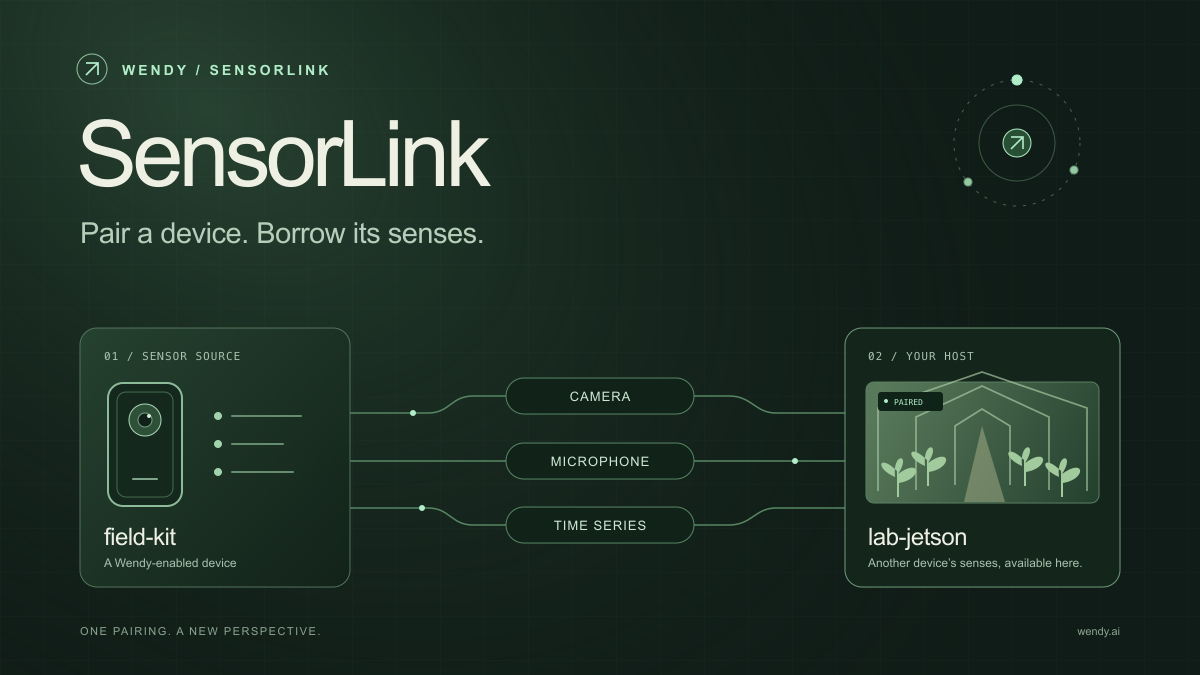
Give your Wendy host the eyes and ears of another device. SensorLink brings cameras, microphones, and a shared model for time-series sensors into a familiar pairing workflow.
Wendy Labs · Wendy Labs Team
Get started
Start with one device. Close the loop around it.
Use WendyOS on your hardware or add Wendy Agent to an existing Linux or Apple Silicon Mac. Connect sensors, run your code, and carry what you learn into the next release.